Markdown Cheatsheet
Markdown is a lightweight markup language with plain text formatting syntax. It’s the de-facto syntax for writing documentation on major code repositories such as GitHub.
Wiki.js supports the full CommonMark specification + adds some useful extensions (including the Github Flavored Markdown addons).
User Guide
Section titled “User Guide”Blockquotes
Section titled “Blockquotes”Using a greater-than symbol, followed by a space, before each line of text.
- By selecting text, then clicking the Blockquote button in the toolbar.
> Lorem ipsum dolor sit amet> Consectetur adipiscing elitLorem ipsum dolor sit amet Consectetur adipiscing elit
By adding a class on a separate line, after the blockquote, you can change the look of the blockquote. Note that these stylings are specific to Wiki.js and will fallback to standard blockquote styling in other applications.
- Blue:
is-info - Green:
is-success - Yellow:
is-warning - Red:
is-danger
> Lorem ipsum dolor sit amet> Consectetur adipiscing elit{.is-info}This is a default unstyled blockquote.
This is a
{.is-info}blockquote.
This is a
{.is-success}blockquote.
This is a
{.is-warning}blockquote.
This is a
{.is-danger}blockquote.
Using double asterisks symbols before and after the text selection.
- By selecting text, then clicking the Bold button in the toolbar.
- By selecting text, then pressing CTRL + B
Lorem **ipsum** dolorLorem ipsum dolor
Code Blocks
Section titled “Code Blocks”Using triple backticks symbols before and after the text selection, on dedicated lines.
- Using the Code Block tool in the left toolbar.
```function lorem (ipsum) { const dolor = 'consectetur adipiscing elit'}```By default, a code block is rendered as plain preformatted text. It’s however preferable to use syntax highlighting for programming code, allowing for easier readability. To specify the programming language used in the code block, simply add the language keyword right after the opening triple backticks:
```java// some code here```Refer to the reference list of about 185 supported programming languages.
Content Tabs
Section titled “Content Tabs”This feature is only available from version 2.4 and up.
Using headers and adding the {.tabset} class to the parent header. The parent header text will not be shown in the final result.
Note that you can use any header level, as long as the children headers are one level higher. For example, if a parent header is ### (h3), the tabs headers must be #### (h4). The maximum header level for a parent being 5 and the children 6.
# Tabs {.tabset}## First Tab
Any content here will go into the first tab...
## Second Tab
Any content here will go into the second tab...
## Third Tab
Any content here will go into the third tab...
Emojis
Section titled “Emojis”Using the syntax :identifier:
See the Emoji Cheat Sheet for the full list of possible options.
:apple:
Can be also be used :fire: inline
🍎
Can also be used 🔥 inline.
Footnotes
Section titled “Footnotes”Use the syntax [^1] for the location of the footnote in the main text, and [^1]: this is a footnote for the actual footnote. Footnotes themselves will automatically appear at the bottom of the page under a horizontal line.
This sentence[^1] needs a few footnotes.[^2]
[^1]: A string of syntactic words.[^2]: A useful example sentence.Headers
Section titled “Headers”Using between 1 and 6 hashtag symbol(s), followed by a space, before the text selection.
- On the desired line, then clicking the Header dropdown button in the toolbar.
- On the desired line, press CTRL + ALT + Right to increase the header level.
- On the desired line, press CTRL + ALT + Left to decrease the header level.
# Header 1## Header 2### Header 3#### Header 4##### Header 5###### Header 6Horizontal Line
Section titled “Horizontal Line”Using triple dash symbols on a dedicated line.
- By clicking the Horizontal Rule button in the toolbar.
Lorem ipsum dolor
---
Consectetur adipiscing elit
Lorem ipsum dolor
Consectetur adipiscing elit
Images
Section titled “Images”Using the syntax .
Image alt text - text that is displayed when the image could not be loaded Image source - file path of image Image title - is displayed when the user hovers over the picture
- Using the Assets tool in the left toolbar.

Consectetur  elitSometimes images are too large or maybe you want the image to fill up all the available space.
Simply at the dimensions at the end of the image path in the following format:
You can also omit one of the values to automatically keep the image ratio:
It’s also possible to use other units, like %. Useful when you need the image to take all the available space:
Inline Code
Section titled “Inline Code”Using a backtick symbol before and after the text selection.
- By selecting text, then clicking the Inline Code button in the toolbar.
Lorem `ipsum` dolorLorem ipsum dolor
Italic
Section titled “Italic”Using a single asterisk symbol before and after the text selection.
- By selecting text, then clicking the Italic button in the toolbar.
- By selecting text, then pressing CTRL + I
Lorem *ipsum* dolorLorem ipsum dolor
Keyboard Keys
Section titled “Keyboard Keys”Using <kbd> before and </kbd> after the text selection.
- By selecting text, then clicking the Keyboard Keys button in the toolbar.
Lorem ipsum dolor <kbd>CTRL</kbd> + <kbd>C</kbd>Lorem ipsum dolor CTRL + C
Using the syntax [Link Text](Link Target).
- Using the Link tool in the left toolbar.
[Lorem ipsum](https://wiki.js.org/about)
Consectetur [adipiscing](/install/requirements) elitConsectetur adipiscing elit
Mermaid Diagrams
Section titled “Mermaid Diagrams”Using a code block with the language mermaid.
Refer to Mermaid website for the language reference.
```mermaidsequenceDiagram    Alice ->> Bob: Hello Bob, how are you?    Bob-->>John: How about you John?    Bob--x Alice: I am good thanks!    Bob-x John: I am good thanks!    Note right of John: Bob thinks a long<br/>long time, so long<br/>that the text does<br/>not fit on a row.
    Bob-->Alice: Checking with John...    Alice->John: Yes... John, how are you?```
Ordered Lists
Section titled “Ordered Lists”Using an number, followed by a dot symbol, followed by a space, before each line of text.
- By selecting text, then clicking the Ordered List button in the toolbar.
1. Lorem ipsum dolor sit amet1. Consectetur adipiscing elit1. Morbi vehicula aliquam- Lorem ipsum dolor sit amet
- Consectetur adipiscing elit
- Morbi vehicula aliquam
While you can number each line numerically in order, it’s easier to use the number 1 on each line. The final result will be incremented automatically. This way you don’t need to re-number every single line when adding or removing a line later on.
PlantUML Diagrams
Section titled “PlantUML Diagrams”Using a code block with the language plantuml.
Refer to PlantUML website for the language reference.
```plantumlBob->Alice : hello```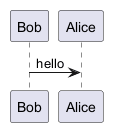
Bob->Alice : helloStrikethrough
Section titled “Strikethrough”Using double tildes symbols before and after the text selection.
- By selecting text, then clicking the Strikethrough button in the toolbar.
Lorem ~~ipsum~~ dolorLorem ipsum dolor
Subscript
Section titled “Subscript”Using a single tilde symbol before and after the text selection.
- By selecting text, then clicking the Subscript button in the toolbar.
Lorem ~ipsum~ dolorLorem ipsum dolor
Superscript
Section titled “Superscript”Using a single caret symbol before and after the text selection.
- By selecting text, then clicking the Superscript button in the toolbar.
Lorem ^ipsum^ dolorLorem ^ipsum^ dolor
Using the syntax:
| Header A1 | Header B1 | Header C1 ||-----------|-----------|-----------|| Cell A2 | Cell B2 | Cell C2 || Cell A3 | Cell B3 | Cell C3 |...| Header 1 | Header 2 | Header 3 ||----------|----------|----------|| Foo | Bar | Xyz || Abc | Def | 123 |will result in:
| Header 1 | Header 2 | Header 3 |
|---|---|---|
| Foo | Bar | Xyz |
| Abc | Def | 123 |
By adding the class dense on a separate line, after the table, you can make the table use a smaller font and smaller padding. For example:
| Header 1 | Header 2 | Header 3 ||----------|----------|----------|| Foo | Bar | Xyz || Abc | Def | 123 |{.dense}will result in:
| Header 1 | Header 2 | Header 3 |
|---|---|---|
| Foo | Bar | Xyz |
| Abc | Def | 123 |
Task Lists
Section titled “Task Lists”Using the syntax - [ ] or a - [x].
- [x] Checked task item- [x] Another checked task item- [ ] Unchecked task item- Checked task item
- Another checked task item
- Unchecked task item
Unordered Lists
Section titled “Unordered Lists”Using an asterisk or a dash symbol, followed by a space, before each line of text.
- By selecting text, then clicking the Unordered List button in the toolbar.
- Lorem ipsum dolor sit amet- Consectetur adipiscing elit- Morbi vehicula aliquam- Lorem ipsum dolor sit amet
- Consectetur adipiscing elit
- Morbi vehicula aliquam
By adding a class on a separate line, after the list, you can change the look of the list:
links-listgrid-list
For example:
- Grid Item 1- Grid Item 2- Grid Item 3{.grid-list}
- [Lorem ipsum dolor sit amet *Subtitle description here*](https://www.google.com)- [Consectetur adipiscing elit *Another subtitle description here*](https://www.google.com)- [Morbi vehicula aliquam *Third subtitle description here*](https://www.google.com){.links-list}
will result in:
- Grid Item 1
- Grid Item 2
- Grid Item 3
and:
- Link Title 1 Subtitle description here
- Link Title 2 Another subtitle description here
- Link Title 3 Third subtitle description here
Note that these stylings are specific to Wiki.js and will fallback to standard list styling in other applications.
Decorate Syntax
Section titled “Decorate Syntax”In some cases, using the {.class-name} syntax doesn’t apply the styling class to the correct element because of ambiguous content. For example:
> Lorem ipsum> - Line 1> - Line 2{.is-info}Because the parser doesn’t know whether the .is-info class should be applied to the list or the blockquote, it ends up being applied to the wrong element (the deepest element preceding it).
You can specify the correct target by using the decorate syntax <!-- {tag-name:.class-name} --> instead. For example:
> Lorem ipsum> - Line 1> - Line 2<!-- {blockquote:.is-info} -->The .is-info class will now correctly be applied to the blockquote element.